

Custom visualizations are a Beta feature.This means we have limited documentation and support. We may also change the way these options work in the future.
Known limitations
These new Vega-lite powered charts offer enhanced flexibility and a broader range of visualizations, but there are important limitations to be aware of, particularly concerning interactivity and dashboard integration like:- Drill-Down Functionality: The ability to drill into metrics by grouping them with dimensions (e.g., “Drill by”) is not available in Custom Charts.
- View Underlying Data: Users cannot click on data points within Custom Charts to view the underlying records that compose those data points.
- Cross-Filtering: Interactive filtering across dashboard tiles by selecting elements within a chart (also known as cross-filtering) is not supported in Custom Charts.
Quickstart
The steps to create a custom chart are as follows:1
Gather your data
Return the data you need for your chart as normal using the Lightdash UI to select relevant dimensions and metrics.
2
Switch to custom chart
Head to the chart configuration options, in the drop down, you should see an option for custom charts as long as it has been enabled.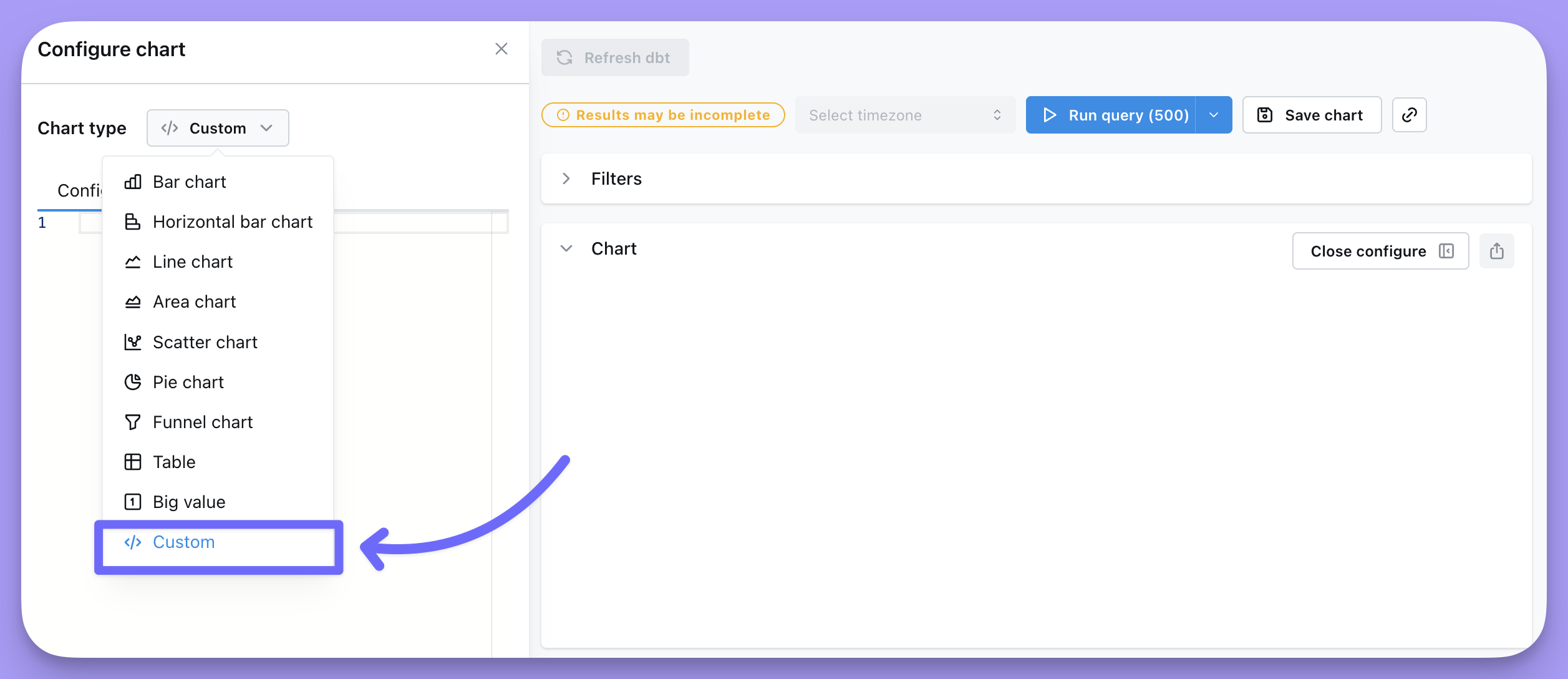
3
Write your config
Select a template to load a sample configuration for the chart selected, or grab an example.
Vega templates
Bar chart
You can already do this with presets in Lightdash, but it’s a simple example you should be able to get working quickly. This chart works best with simple string or date dimensions and a numeric metricHere is an example config with tooltips and a pivot
Here is an example config with tooltips and a pivot
Sankey-style bar chart
Use this chart when you want to show how parts of a whole change across categories or time and you want to visualize how individual segments flow from one stage to the next. It’s perfect for things like user cohorts, funnel stages, or survey responses over time. Any scenario where it’s helpful to track how groups move or shift between steps. See a live demo of this chart on our demo site. The config below will output a sankey-style bar chart with the standard Vega-Lite settings, like this: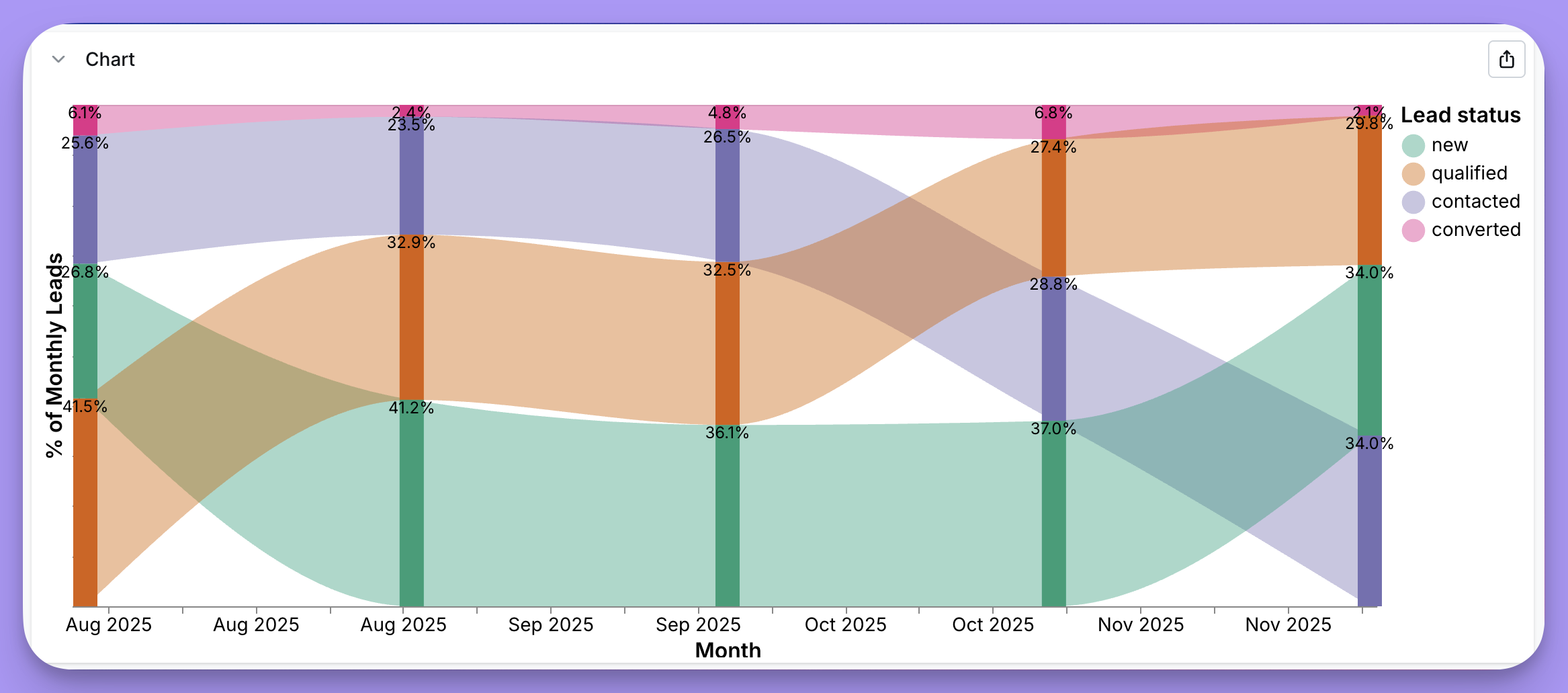
Example sankey-style 100% stacked bar chart config
Example sankey-style 100% stacked bar chart config
Line chart with confidence interval
This chart works best with a date dimension on the x-axis and a numeric metric as the “Mean” with “Mean High” and “Mean Low” numeric values in your results. See a live demo of this chart on our demo site. The config below will output a line chart with confidence interval bands that looks like this: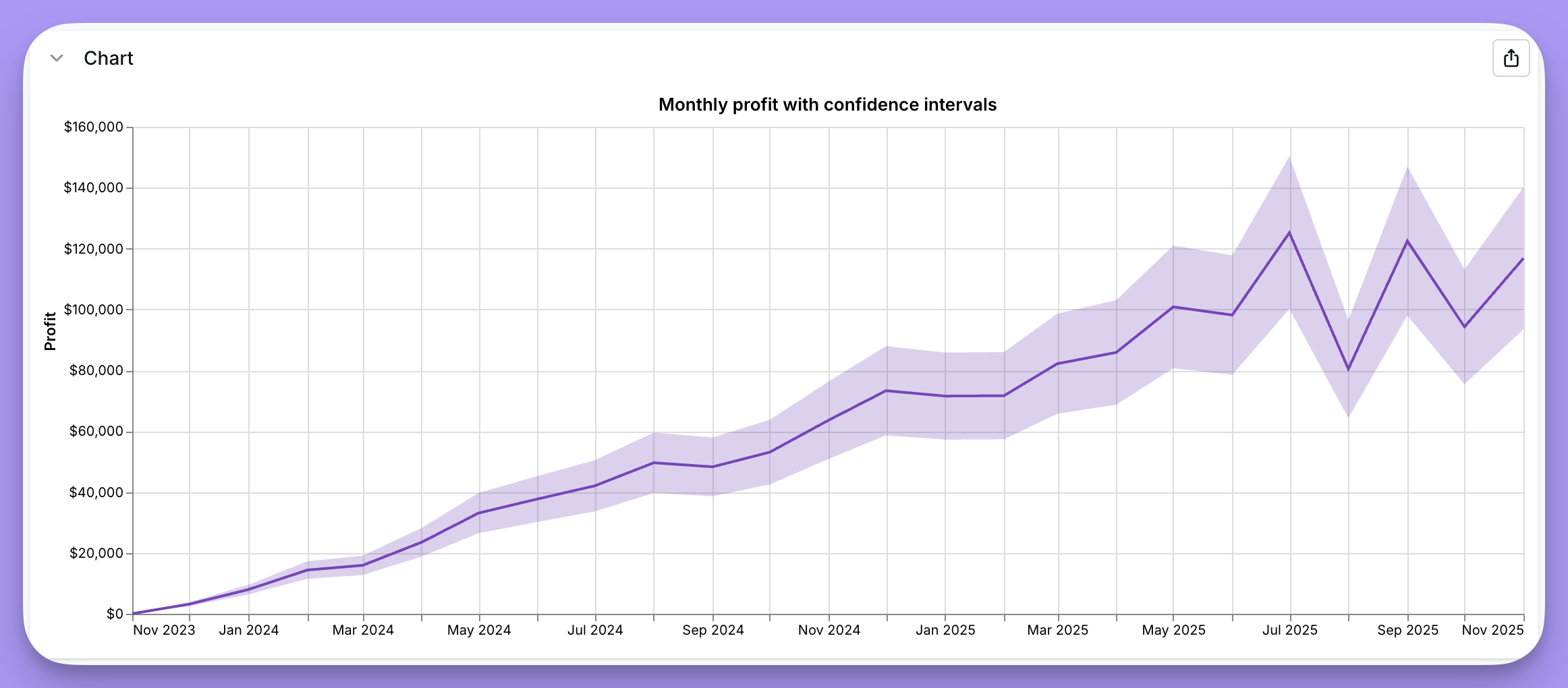
Example line chart with confidence interval config
Example line chart with confidence interval config
Heatmaps
Heatmaps are ideal for visualizing patterns across two categorical or temporal dimensions, making it easy to spot trends, hotspots, or anomalies at a glance. They’re perfect for analyzing time-based patterns (like day of week vs. hour of day), comparing performance across categories, or identifying correlations in multi-dimensional data. This chart works best with string or date dimensions and a numeric metric as color. See a live demo of this chart on our demo site. In this example, the heatmap uses orders data to show patterns across order weeks (x-axis) and days of the week (y-axis), with color intensity representing the number of orders. The config below will output a heatmap with the standard Vega-Lite settings that looks like this: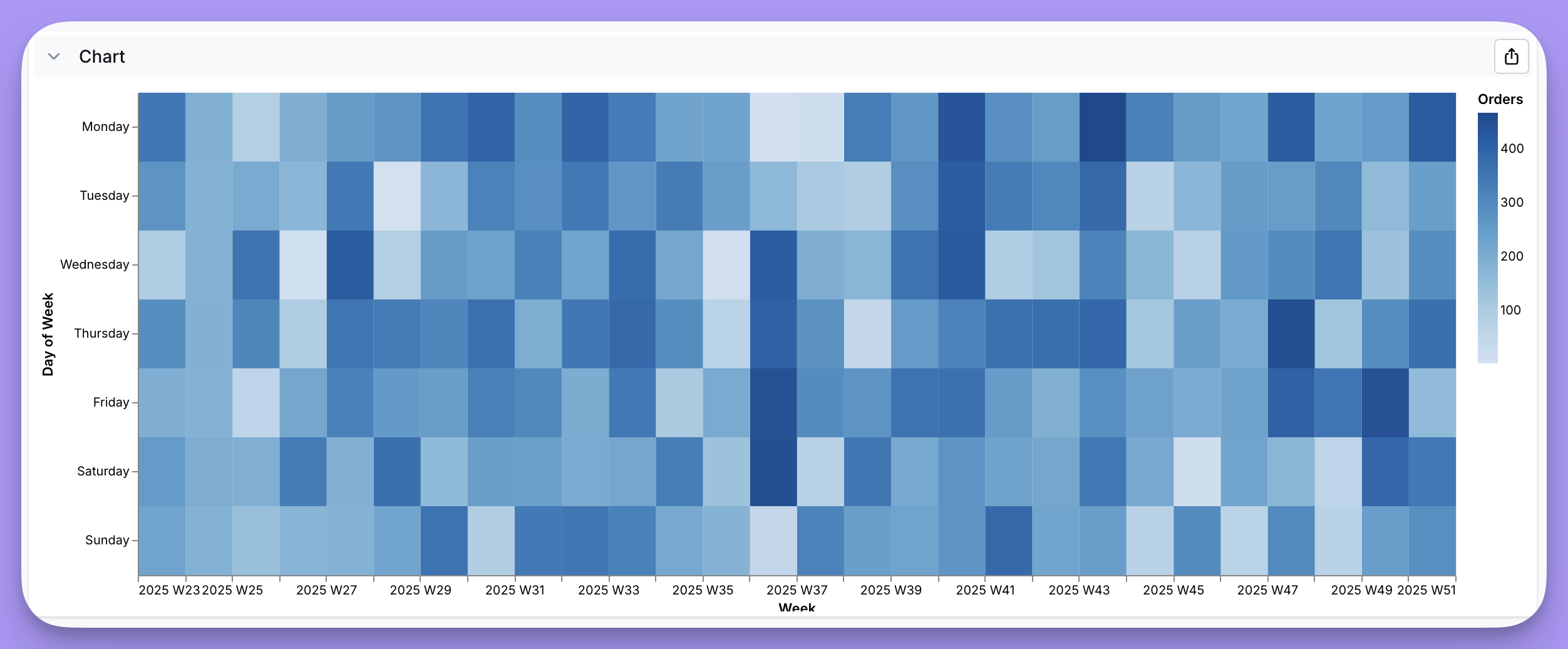
Example heatmap config
Example heatmap config
Bubble Plots
Bubble plots build on top of standard scatter plot visualizations, by allowing you to adjust the size of a given point based on the output of a field. Here’s one looking at some Healthcare data. This chart works best with string or date dimensions and a numeric metric for the y-axis and another numeric metric for the size. See a live demo of this chart on our demo site. The config below will output a bubble plot with the standard Vega-Lite settings, like this: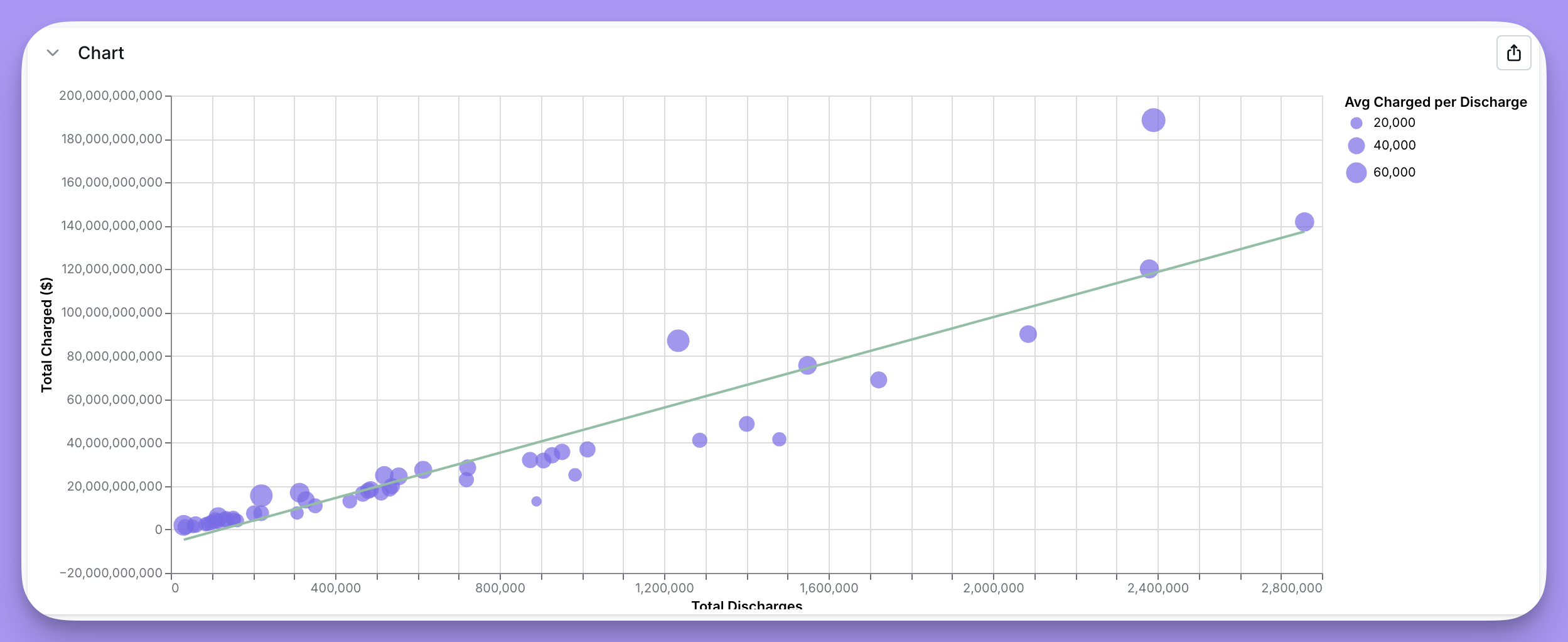
Example Bubble blot config
Example Bubble blot config
Funnel charts
Funnel charts are ideal for visualizing a flow or process where the quantity decreases step-by-step, such as sales pipelines, conversion rates, or order processes. Each stage is represented as a bar whose width reflects the corresponding value. This chart works best with a categorical or string dimension (like status or step name) and a numeric metric (such as order amount or count) to measure at each step. Funnel chart configurations are more complex than other charts. We recommend loading the template directly in Lightdash, which will automatically map your data fields. See a live demo of this chart on our demo site. The config below will output a funnel chart with the standard Vega-Lite settings that looks like this: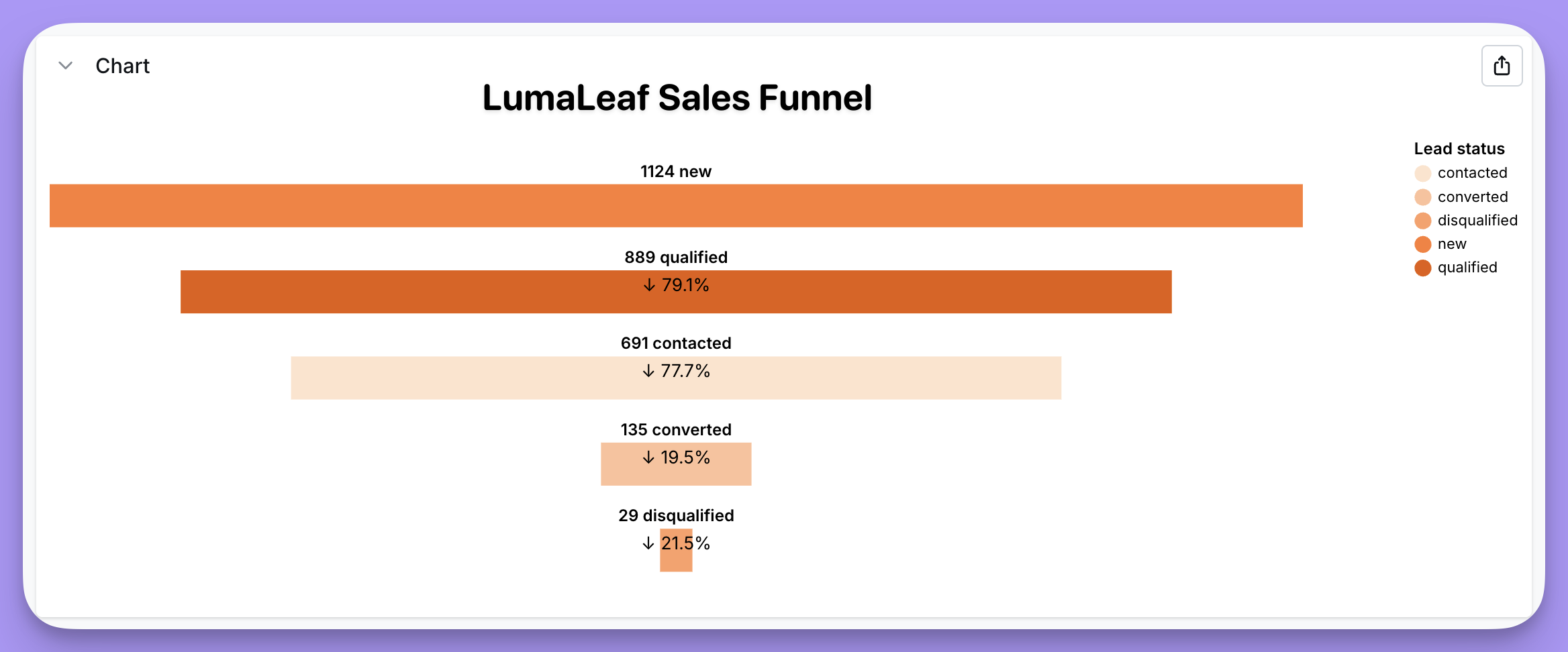
Example funnel chart config
Example funnel chart config
Waterfall charts
Waterfall charts show how an initial value is affected by a series of positive and negative changes, making it easy to see the cumulative effect of sequential increases and decreases. They’re perfect for visualizing financial changes (revenue breakdown, budget analysis), customer lifecycle metrics, or any scenario where you need to track step-by-step contributions to a total. This chart works best with a categorical or temporal dimension for the x-axis (like stages or time periods) and numeric metrics representing starting and ending values for each step. See a live demo of this chart on our demo site. The config below will output a waterfall chart with the standard Vega-Lite settings, like this: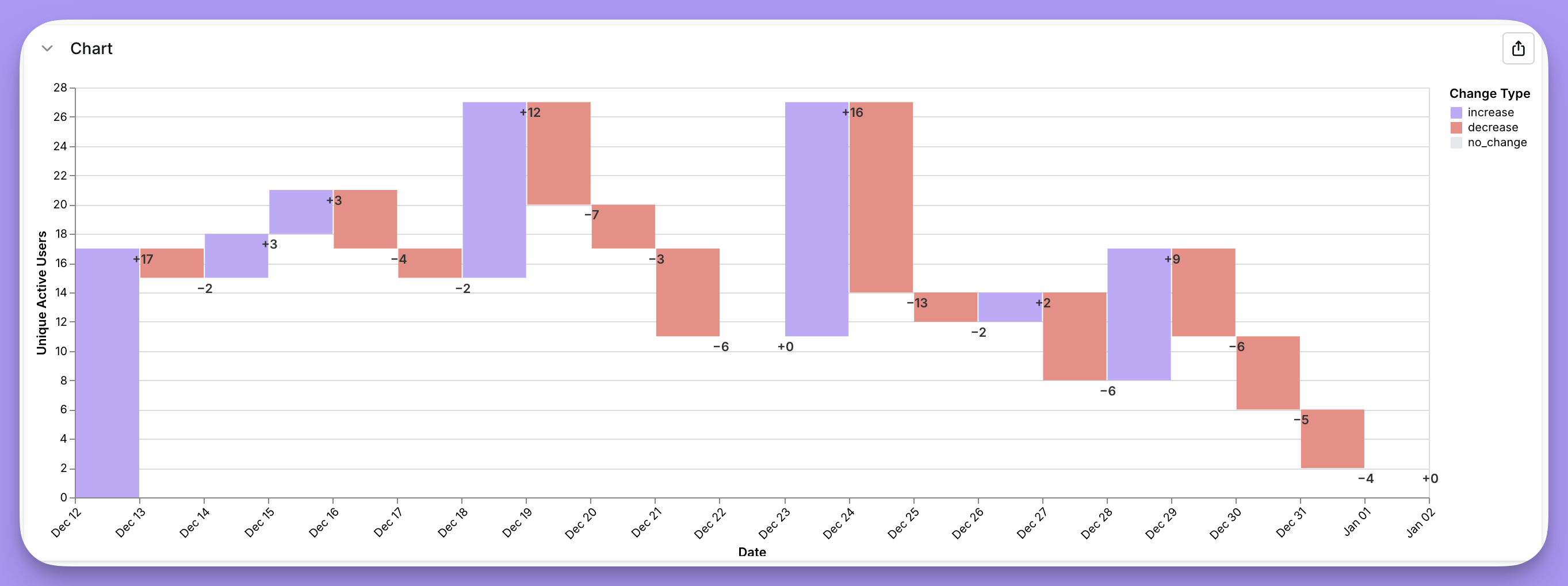
Example waterfall config
Example waterfall config
Map charts
Map charts are perfect for visualizing data that has geographic coordinates, such as customer locations, sales regions, or shipment routes. They combine a background map (usually countries, states, or regions) with your data points overlaid as markers. This chart works best when you have latitude and longitude fields or a TopoJSON lookup with some ID or unique lookup name to plot the points on the map, and a numeric metric to adjust the size of each point or color gradient (like total sales or number of customers).World map country bubbles
In this example, the base world map is drawn using a TopoJSON file of countries, and data points are plotted as circles, with their size based on the total order amount. The config below will output a map chart with the standard Vega-Lite settings, like this: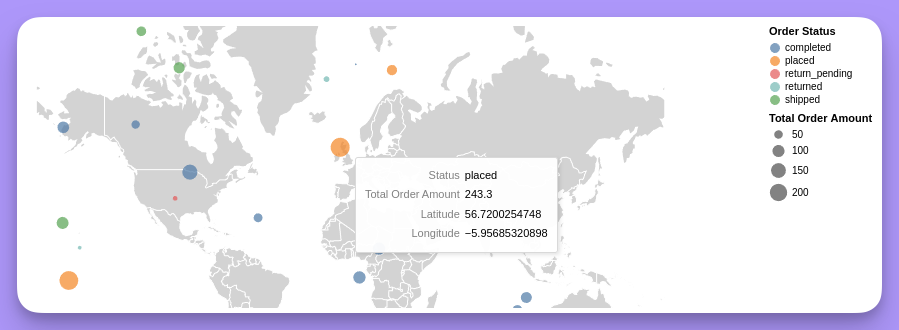
Example world map config
Example world map config
USA counties choropleth
To load additional maps, you can specify a full URL on the data layer, and adjust the projection if needed, for example, below is the code for a county-level map of the United States. The config below will output a map chart like this: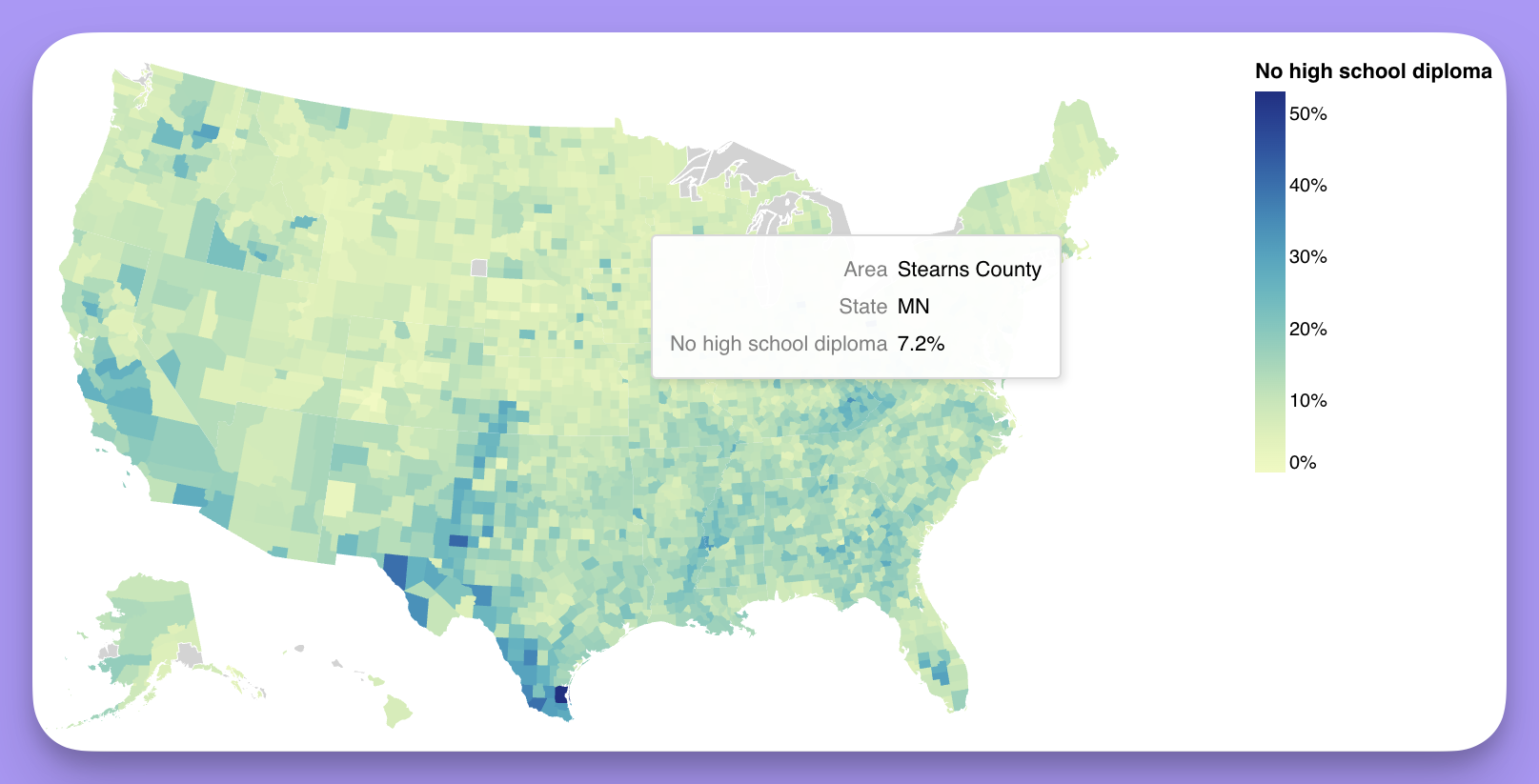
Example USA map config
Example USA map config
Trellis area chart
Trellis area charts (also called small multiples or faceted area charts) are perfect for comparing trends across multiple categories over time, making it easy to spot patterns, outliers, and seasonality at a glance. They’re ideal for analyzing product lines, user segments, marketing channels, or any scenario where you want to emphasize the shape of trends rather than exact values. This chart works best with a temporal dimension for the x-axis, a categorical dimension for faceting, and a numeric metric for the y-axis. See a live demo of this chart on our demo site. The code below will give you a trellis area chart like this: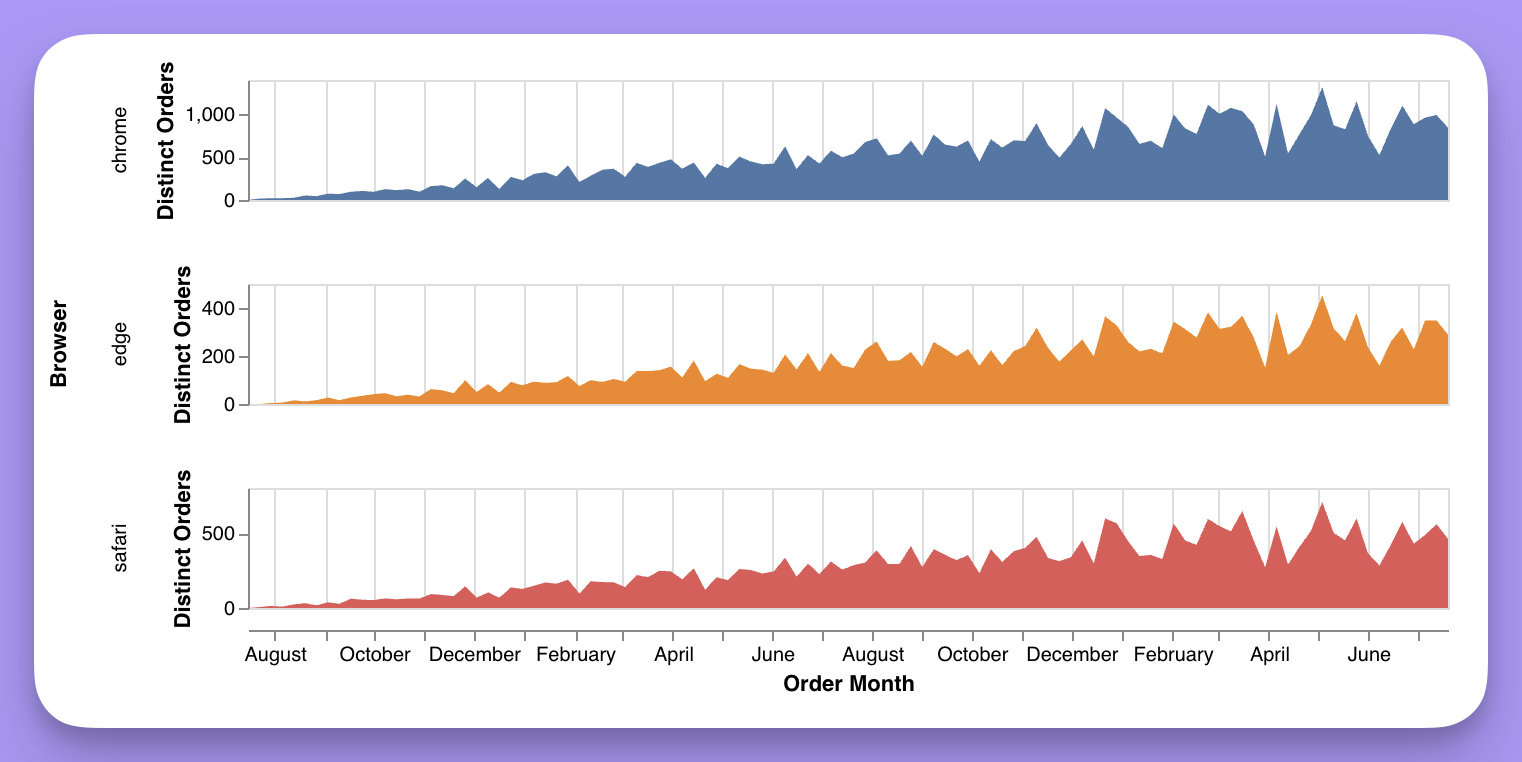
Example trellis area chart config
Example trellis area chart config
Highlighted bar chart
Highlighted bar charts are perfect for comparing a metric across categories while drawing attention to a specific item of interest, making it easy to see how one bar stands out from the rest. They’re ideal for emphasizing key accounts, top products, benchmark comparisons, or any scenario where you want to spotlight a particular category. This chart works best with a categorical dimension and a numeric metric. See a live demo of this chart on our demo site. The code below will give you a highlighted bar chart like this: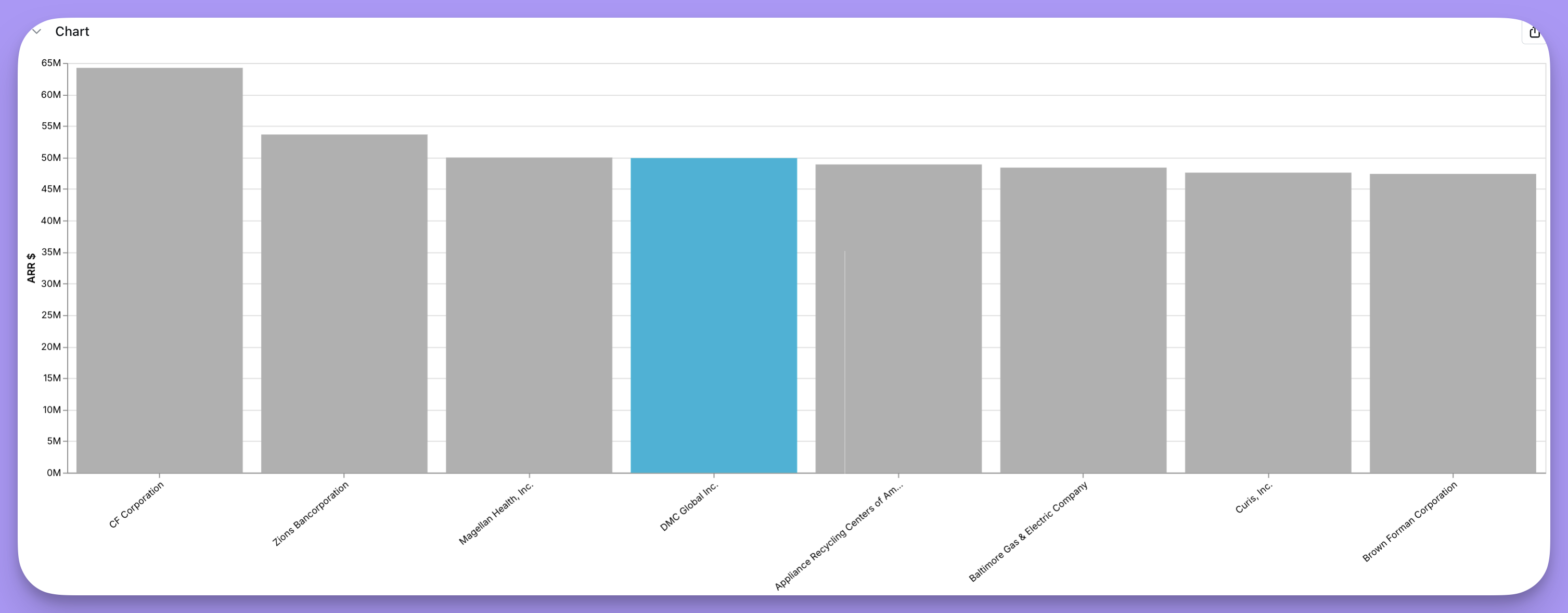
Example highlighted bar chart config
Example highlighted bar chart config